
How to create a to-do list with React? | Tutorial

When developers start working with React, two projects they develop as proof of concepts are a counter with a clickable button and a to-do list. In this post I'd like to walk through the development of a to-do list, from installing a default React project to save the tasks on the localstorage.
And as a bonus you gain a counter that comes as the default project of the React initializing tool we are going to use.
Requirements:
- npm (check here for the documentation on how to install);
- A text editor, I recommend VSCode;
- Desire to learn;
Accessing the terminal
To start our React project, we will need to access the terminal to run some scripts.
- On linux: press CTRL + ALT + T;
- On Windows: press WINDOWS + R, type CMD and press enter;
- On Mac: press COMMAND + spacebar, type terminal and press enter.
If you're using VSCode, you can use its internal terminal.
Starting React project with Vite
With the terminal open, you can type "ls" to list the folders in your current folder, "cd [name-of-folder]" to enter the folder, "cd .." to go to the parent folder.
With this commands, navigate to the folder you would like to install your project and then, type "npm create vite@latest", then vite will ask you some questions, type "y" to continue.

Choose a name for your project

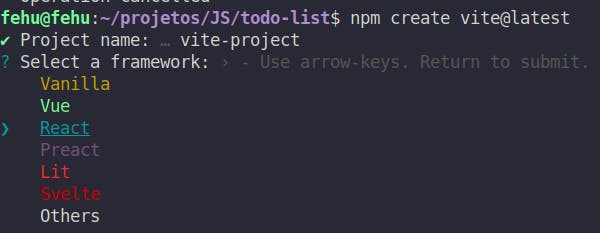
At this point Vite will ask which framework we are going to use,
Choose React
And finally Typescript + SWC
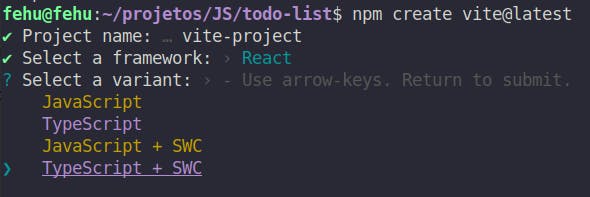
After that Vite will create a default React project with Typescript in your folder, you can run the following commands to:
- enter your project's folder "cd [name-of-your-project]";
- install the dependecies for Vite "npm install";
- start your project on development environment "npm run dev".
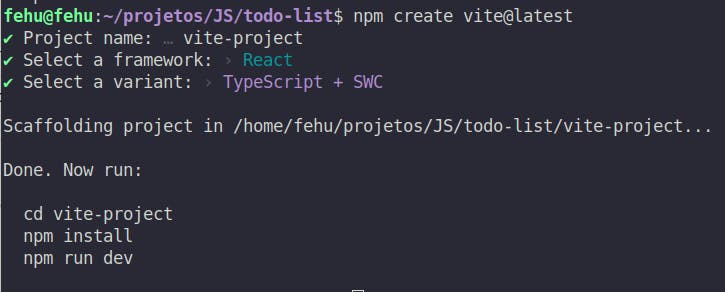
After starting your project with the last command, you will see the following in your terminal, so you can open your browser and access http://localhost:5173 (changing the number for the number on your terminal) to see the default Vite project.
Vite will keep your project running and will auto reload your server everytime you save some project file, with this your browser will always show the current version of your code.

After you run all this commands on a terminal, it's time to open VSCode on your project's folder, to start developing.
Cleaning the default project
Your folder's structure will look like this, we are going to delete the assets folder, the App.css and Index.css files.
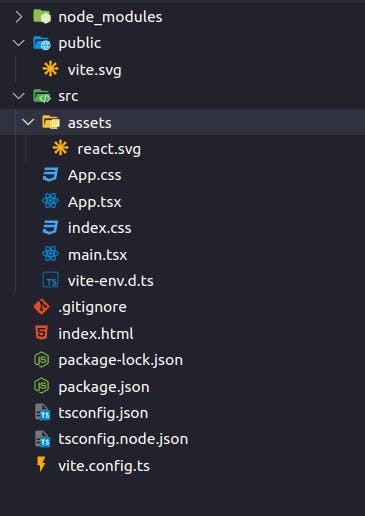
After deleting these files, open main.tsx and remove the index.css import, on line 4, after deleting this line, the code will look like this:
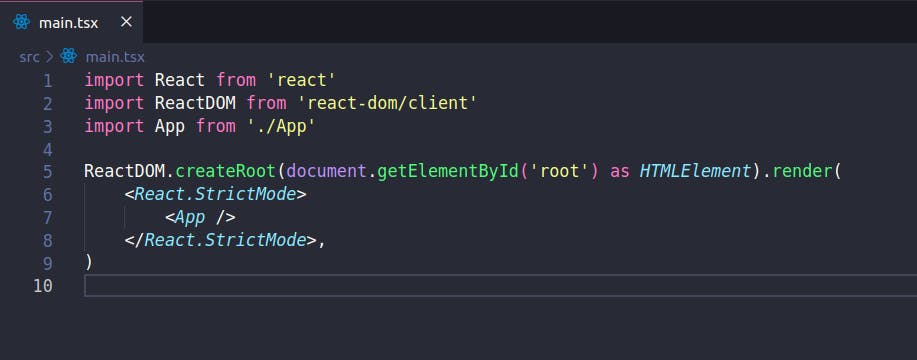
With the main.tsx updated, we can close it and open App.tsx, remove the useState import on line 1, remove the reactLogo import on line 2, remove the App.css import on line 3, remove the [count, setCount] on line 6 and finally delete lines 9 to 29.
*all the line references are before all deletion.
The code will look like this:
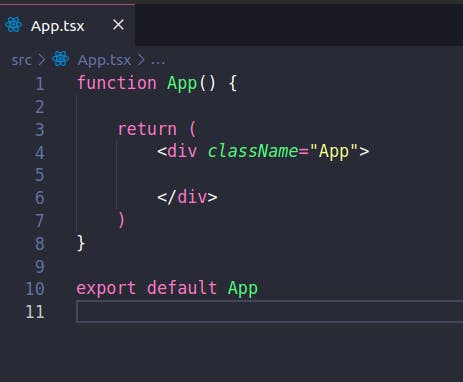
Creating a GlobalStyle
In React we create styles for each component, which we will talk soon. But first, let's create a globalStyle that will define common styles for the whole application.
Inside your src folder, create a globalStyle.css file and write it as follows in the next picture.
Notice:
- You can play with the colors hexcodes to create a different palette to your to-do list;
- The last property .App refers to the className on App.tsx. (try to change the name on both files, to see that it will still work).
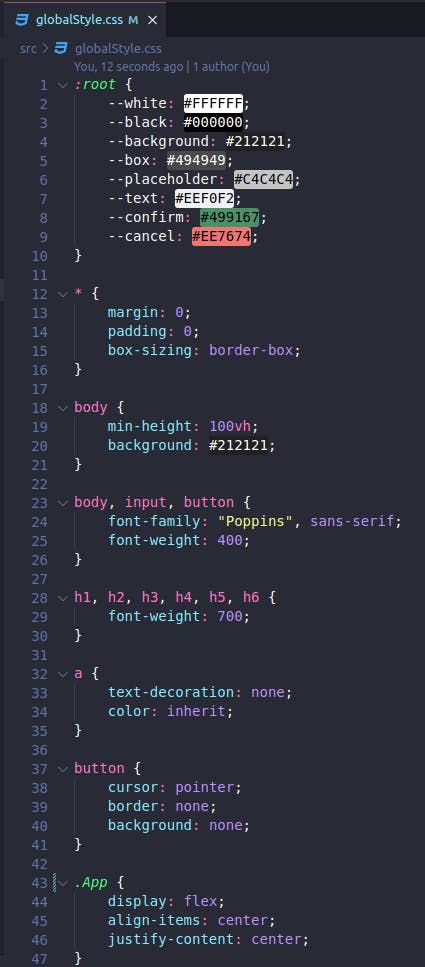
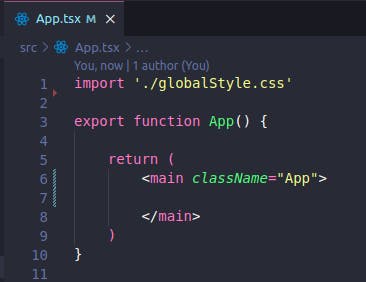
Then we can go back to App.tsx and add the globalStyle import as follows.
Creating components
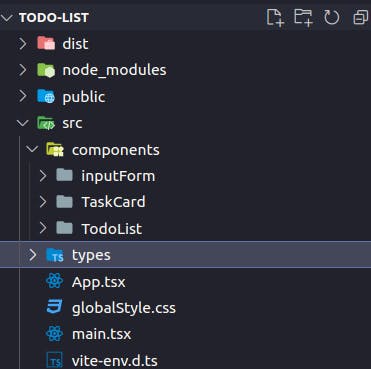
Now we are ready to start creating our components, we are going to create a new folder named components (and the name is just the standard name for React component's folder, but you can name it as you wish, just remember to match the names in the imports) inside src, and inside components, three other folders named:
- InputForm - will be our input for new tasks;
- TaskCard - will be the card showing a single task and the button to remove it;
- TodoList - will be the component to unite the others.
We will also create a types folder, also inside src.
InputForm
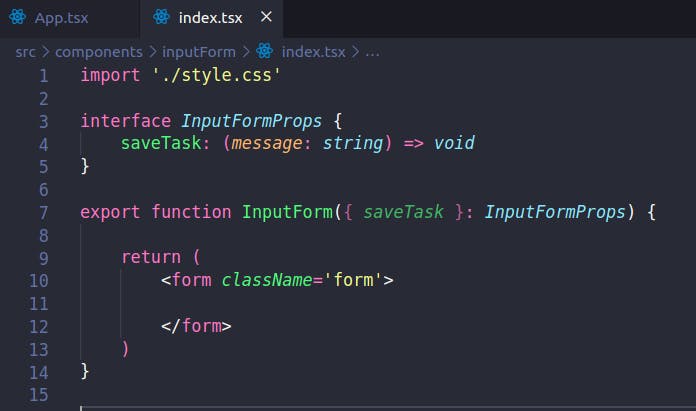
Inside InputForm folder, create a index.tsx and a style.css file.
The first thing we are going to do is import the style.css and then export a function name InputForm. This function will receive a function named saveTask as a prop and will return a form. On lines 3 to 5 we declare the type of the props for our component, with an interface.
After creating the structure of the component, we are going to add functionality to it.
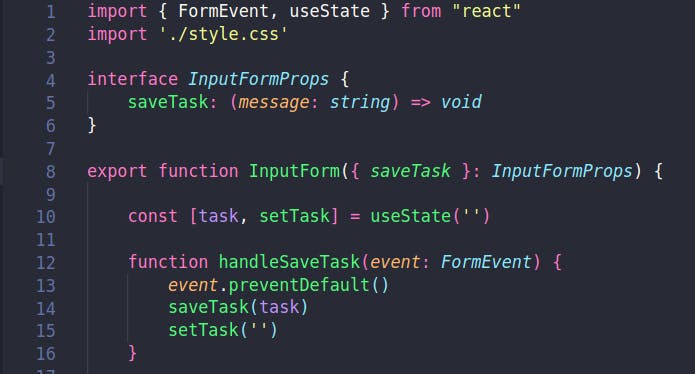
Import FormEvent and useState from react, and then, define the state for the task, that will be updated when we type our words on the screen.
The useState works as a variable with the concept of immutability and needs to be create again everytime it needs to be updated. For the reason of being created everytime, React re-renders the component everytime the state updates.
We are going to talk in more details about the React render in another post.
useState return two values, the first one (task in this case) is the immutable variable that store our state and the second (setTask) is the function that should be called to recreate the state with the new value.
With the state set, let's create a function that handle the saveTask action. This function will
- Receive the event from the form;
- Prevent the default actions from the form submit;
- Call the saveTask function received as a prop by the component (we are going to see what this function does in the next sections).
- Set the state do empty, cleaning the input field on the screen.
Finally, we are going to:
- Tell the form, that when submited it should run the function we built previously;
- Add the input and tell it to show the value of our state and whenever the value change, we update the state.
- Add a button to submit the form when clicked.
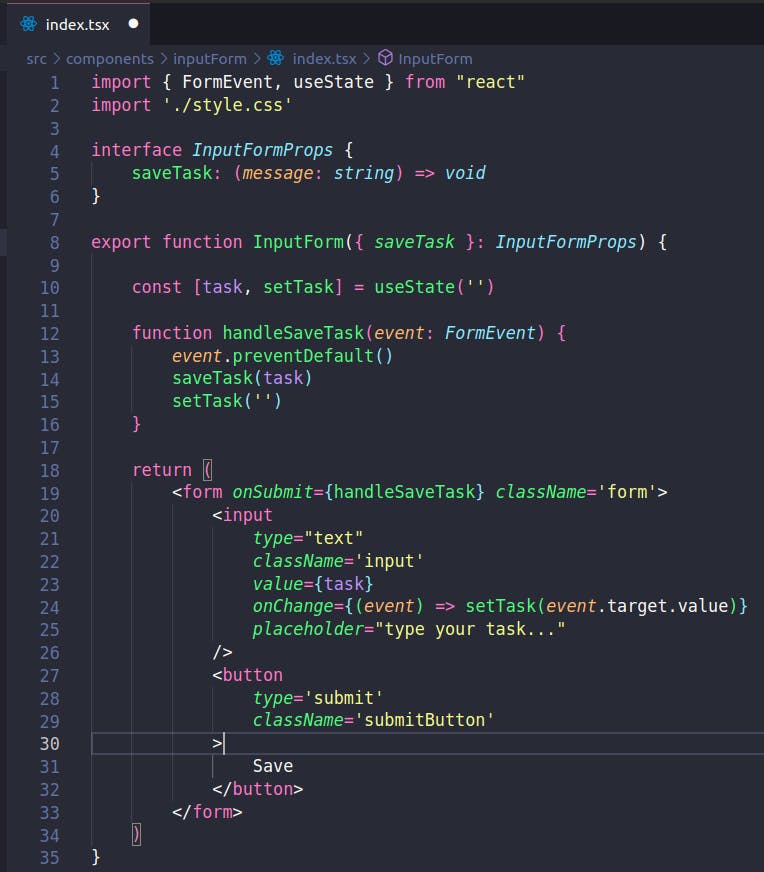
With the InputForm.tsx file finished. Let's jump into style.css and add properties for each element we added on our inputForm component.
Try to look at your browser running the project before adding the styles and after that to see how CSS makes our projects pretty.
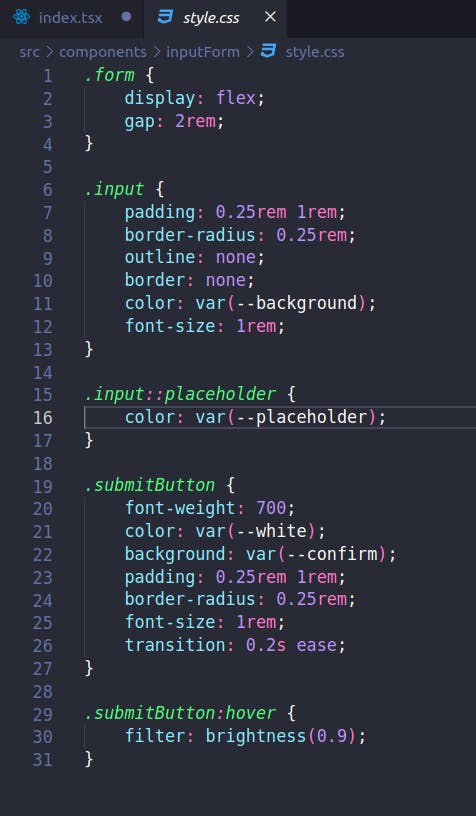
TaskType
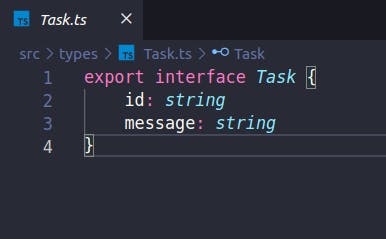
Inside the types folder, create a Task.ts file and export an interface with the type Task, which will have two properties: an id and a message.
(tip: if you accept the second challenge I made on the end of the post, you will need to add another property here)
TaskCard
Inside TaskCard folder, create a index.tsx and a style.css file.
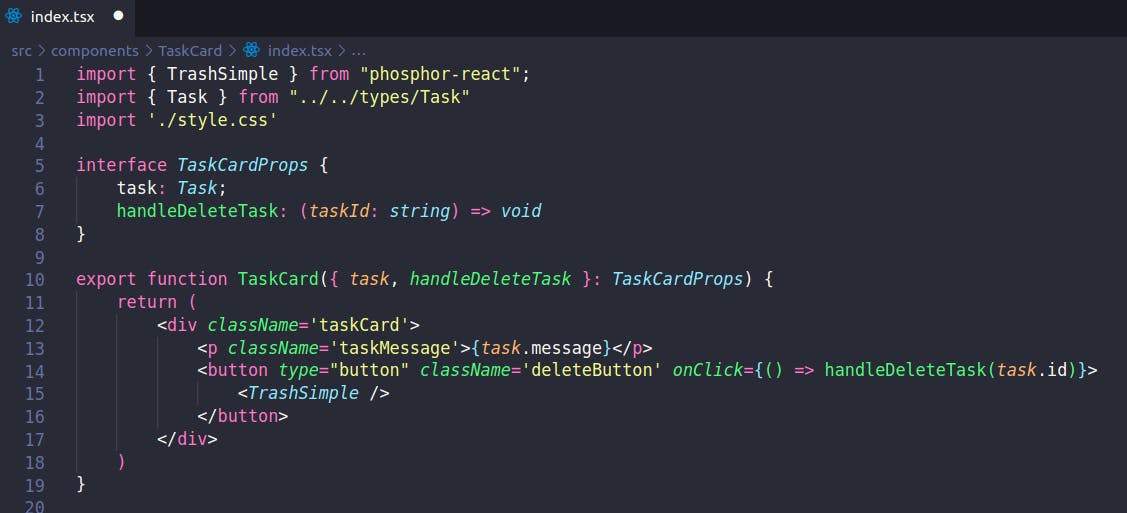
In index.tsx, we are going to start import the Task type we just created and the style.css.
Then declare the interface for the props of this component and export a function named TaskCard receiving the props declared on the interface. This function will return a div.
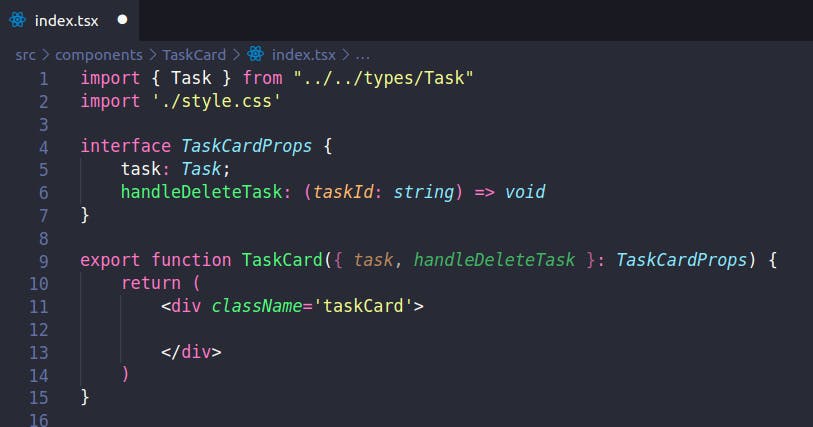
To proceed, we will need to install a library of icons, run npm install phosphor-react on your terminal, inside the project's folder.
After installing the library, let's import the TrashSimple from it.
Add,
- p tag passing the message of our task
- button that will call handleDeleteTask on click and this button will show the icon we imported.
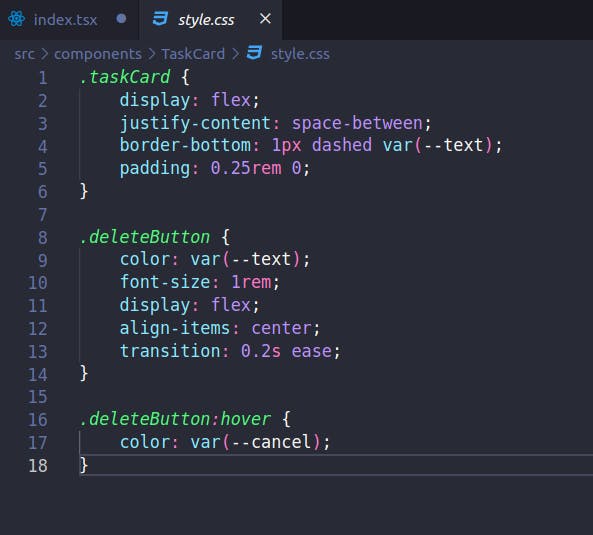
Finally, we add the CSS properties to the style.css file.
TodoList
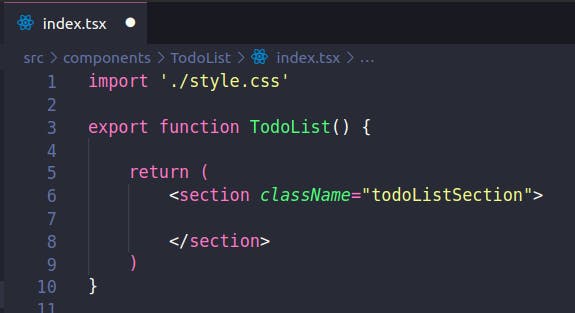
Inside TodoList folder, create a index.tsx and a style.css file.
On the index.tsx import the style.css and export a function named TodoList returning a section.
To proceed, we will need to install a library to create uuid (universal unique id), run npm install uuid on your terminal, inside the project's folder.
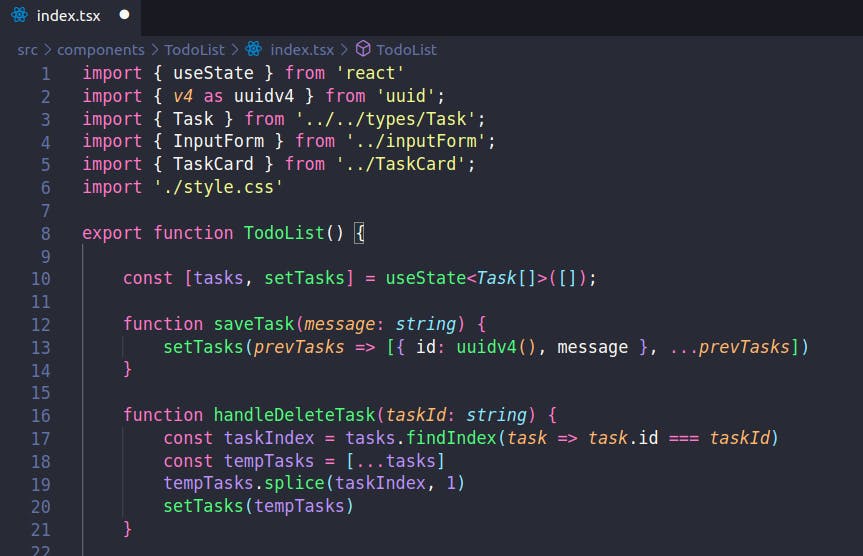
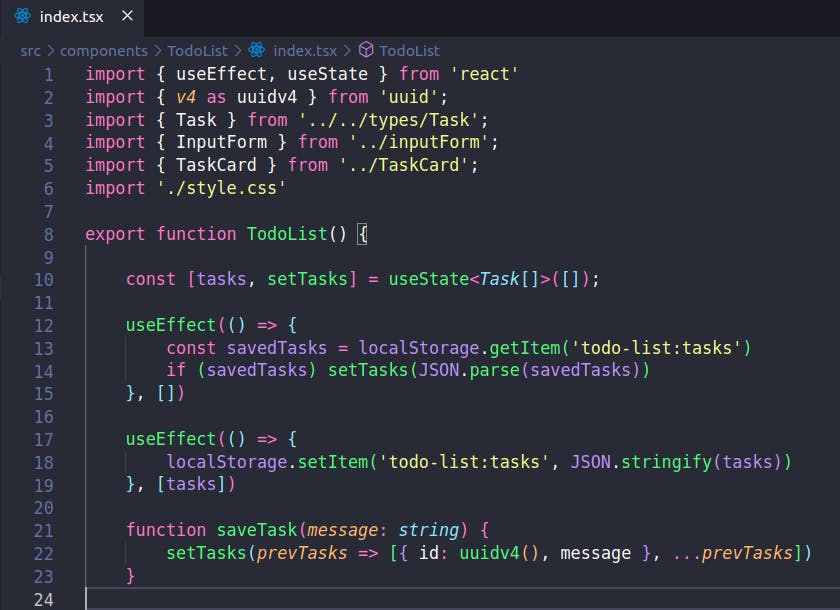
After installing, let's import uuid, useState, our Task type and the other two components we developed, InputForm and TaskCard.
After importing everything we need, let's:
- Create an state to store all our tasks;
- Create a function saveTask, that will receive a message and set the tasks state with the new task;
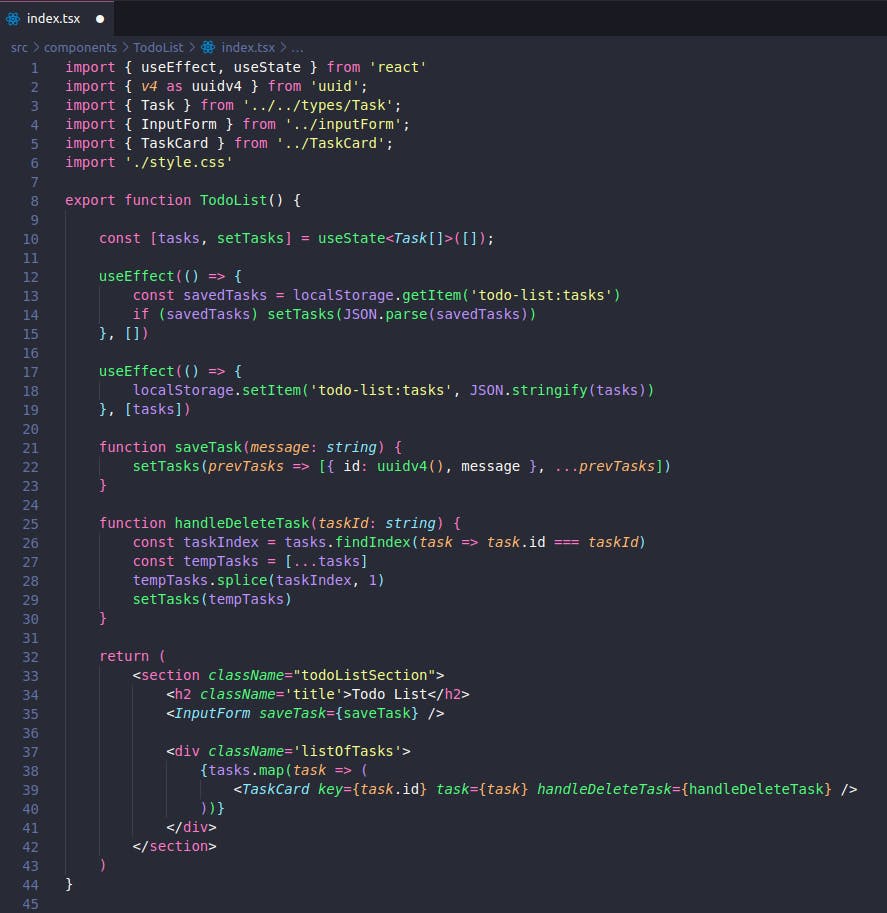
- Create a function to handle the deletion of a task, that will receive a task id and remove it from the tasks state.
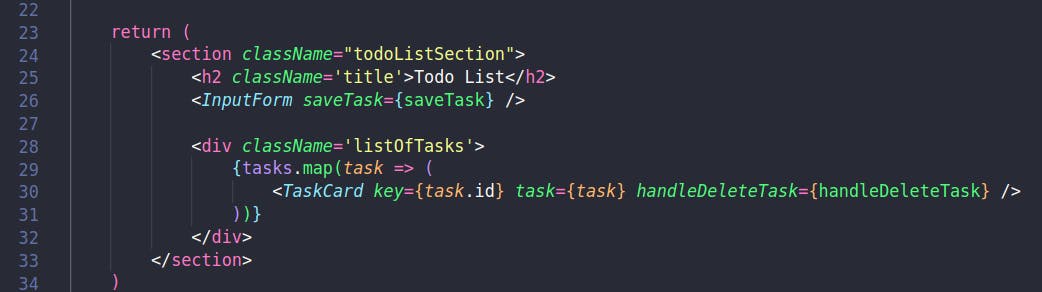
After declaring the function, we can complete the component return, adding
- An h2 with the title of our app;
- Our InputForm component passing the saveTask function as a prop;
- A div with a list of TaskCard. For each task in tasks, we render a TaskCard passing the task and the delete function as prop. Whenever we add a list of element in the return statement of React, we need to pass a key property, so React knows which element to render in each order on re-renders.
Finally, to save our to-do list on the localStorage and do not lost our tasks when reloading the page, we are going to use another React hook, the useEffect.
This hook performs side effect in our components. It is used to trigger some action whenever the component render the first time or some state or function is recreated.
In the first useEffect we are going to use, we will trigger the function of localStorage API that reads if there is something saved on localStorage and if yes, save it on the tasks state. This hook will receive an empty dependecy array, meaning that this useEffect will only trigger when this component renders the first time.
The second useEffect is going to save the tasks in the localStorage whenever the tasks state updates, as we can see in the dependency array of this hook.
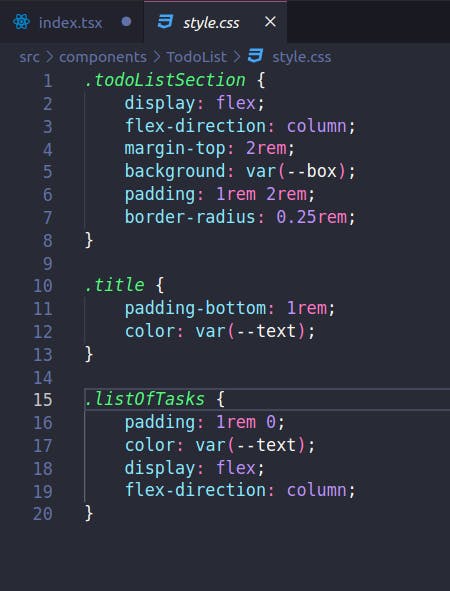
To make everything pretty, we add properties to our style.css file.
App
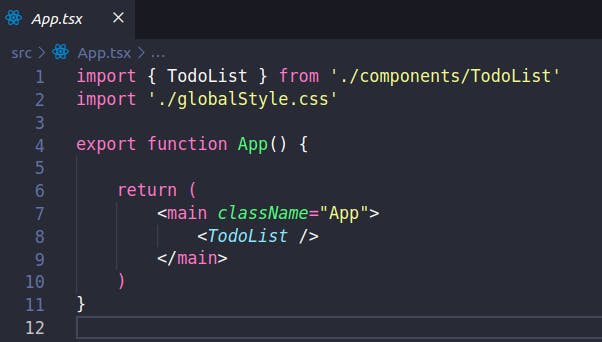
With the TodoList component done, let's call it on our App.
Open the App.tsx and inside the main tag, say to return statement to render the component.
And then, you should be able to access your browser and add and remove tasks from your to-do List.
What to do next?
Now that your to-do list is done, we can improve it implementing some new features, here are some challenges:
- Change the style.css files and change the colors and fonts from your to-do List;
- Add a creation date to your task and display it on the task list. You can check the browser Date Api doc to see how to take the current date. Add a date property to your task, that at the moment only has message and id.
If you follow the tutorial and implement this project, send me pictures of it on LinkedIn, I will appreciate to see your projects.
Conclusion
To-do List is a simple project that every developer creates when starting with React. There are infinite ways to implement it and I tried to bring an implementation that is simple, but at the same time shows some features of React (like the hooks) and of browsers (like the localStorage API).
Tell me in the commnets if you liked the project and give me suggestions for new posts or tutorials.
What about:
- A tutorial on how to install and configure VSCode?
- An explanation of different ways of starting a React project?
- A more advanced concept: How React deals with the render flow?